Technical SEO ensures Google can efficiently crawl, index, and understand your Shopify store. Shopify handles the basics automatically, but several platform-specific issues can silently hurt your rankings. 53% of mobile visitors leave if a page takes more than 3 seconds to load. This guide covers the technical SEO problems that hurt Shopify stores most often, and exactly how to fix each one.
This guide is part of our Shopify SEO guide.
What Does Shopify Handle Automatically?
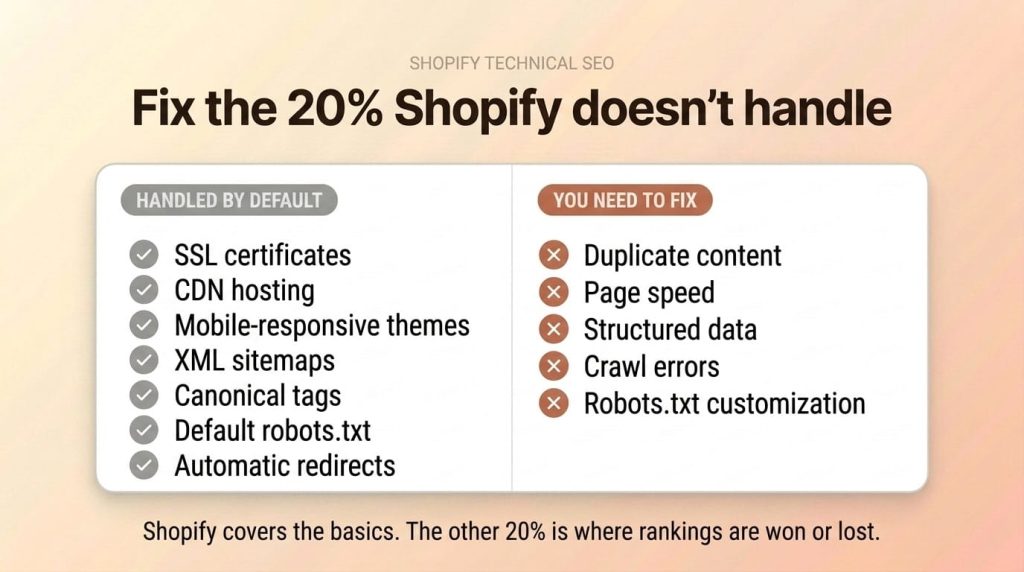
By default, Shopify handles about 80% of technical SEO. Before you start auditing, know what the platform already covers so you can focus on issues that need fixing.
- SSL certificates: Free SSL on every store, all pages load over HTTPS.
- CDN hosting: Cloudflare CDN serves your store globally. No configuration needed.
- Mobile-responsive themes: All Theme Store themes are mobile-responsive.
- Auto-generated XML sitemaps: Updated automatically at
/sitemap.xmlwhen you add or remove content. - Canonical tags: Added to product, collection, and page templates by default.
- Default robots.txt: Blocks internal search, checkout, and other non-public paths.
- Automatic redirects: Created when you change a page’s URL handle.
The rest of this guide covers the 20% you need to fix yourself.
How Do You Fix Duplicate Content on Shopify?
Duplicate content is the single most common Shopify technical SEO issue. The platform creates multiple URL paths to the same product page, and without proper handling, Google may crawl and attempt to index both versions. This wastes crawl budget and can dilute ranking signals across URLs.
Collection URL Duplicates
Every product on Shopify has a canonical URL at /products/product-handle. But when that product appears in a collection, Shopify also generates a second URL: /collections/collection-name/products/product-handle. Both URLs load the exact same page content.
Shopify’s canonical tags handle this by default. The collection-scoped URL includes a canonical tag pointing to /products/product-handle, telling Google to consolidate ranking signals.
Where it breaks: Custom themes sometimes override canonical tag logic, third-party apps can inject their own canonicals, and internal links often point to the collection-scoped URL instead of the canonical version.
Fix: Always link to /products/product-handle in navigation, collection templates, and internal links. Check your theme’s product-card.liquid or card-product.liquid to confirm links use {{ product.url }} without a collection context.
Tag Page Duplicates
Shopify collections support tags for filtering. When a customer clicks a tag, the URL becomes /collections/collection-name/tag-name. These tag pages display a filtered subset of the collection, but they don’t have unique titles, descriptions, or canonical tags by default. If you have 15 tags on a collection, that’s 15 additional indexable URLs with thin, overlapping content.
Fix: Add noindex tags to tag-filtered collection pages. In your collection template, check for the current_tags variable. If tags are active, output a noindex meta tag in the <head>. This keeps tag pages functional for shoppers while preventing Google from indexing thin filtered pages.
Pagination and Filter Parameter URLs
Sort parameters like ?sort_by=best-selling and pagination parameters like ?page=2 create additional URLs for every collection page. A single collection with 5 sort options and 10 pages of products generates 50+ indexable URL variations.
Fix: Shopify adds canonical tags to paginated pages pointing back to page 1, which handles the basic case. For sort parameters, confirm your theme isn’t generating self-referencing canonical tags with the sort parameter included. Use Google Search Console’s Pages report to check if Google is indexing parameter URLs.
Product Variant URLs
When customers select a variant (size, color, material), Shopify appends a ?variant= parameter to the URL. The page content stays the same. Shopify handles this with canonical tags pointing to the parameter-free version, but verify this is working on your specific theme.
Fix: Test a product page with variants in the Rich Results Test. Paste both the canonical URL and a variant URL. The canonical tag should point to the same base URL on both versions.
Pro Tip: Run a crawl with Screaming Frog or Sitebulb. Filter for pages where the canonical tag points to a different URL. Those are your duplicate content issues. For a complete audit process, follow our Shopify SEO checklist.
How Do You Speed Up a Shopify Store?
Page speed directly affects both rankings and revenue. 53% of mobile visitors leave at 3+ second load times, and Deloitte’s research shows a 0.1-second speed improvement lifts retail conversions by 8.4%. Speed fixes deliver some of the highest ROI in technical SEO.
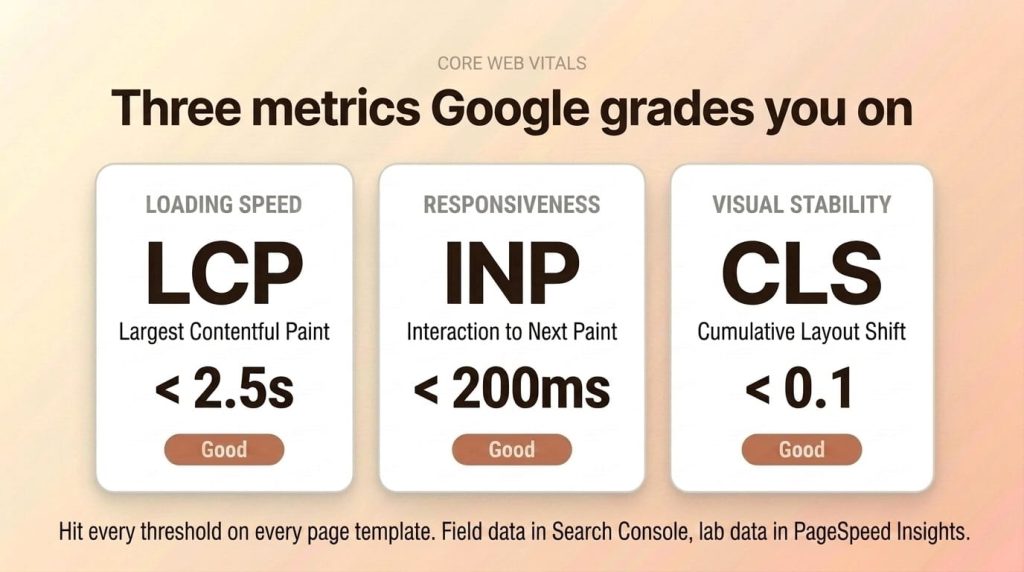
Before diving into fixes, know your Core Web Vitals targets:
- LCP (Largest Contentful Paint): measures loading speed — under 2.5 seconds
- INP (Interaction to Next Paint): measures responsiveness — under 200 milliseconds
- CLS (Cumulative Layout Shift): measures visual stability — under 0.1
Audit and Remove Unused Apps
Every Shopify app you install can add JavaScript and CSS to every page load, even pages where the app isn’t used. A countdown timer on your product pages still loads scripts on your homepage, blog, and collection pages.
Go to Settings > Apps and sales channels and review every installed app. If you installed something, tested it, and never used it, uninstall it. Simply disabling an app doesn’t always remove its code. After uninstalling, check Online Store > Themes > Edit code for leftover Liquid snippets.
Compress Images Before Uploading
Images are typically the heaviest assets on any Shopify page. Target under 200KB per image. Use WebP format when possible, as it delivers 25-35% smaller files than JPEG at equivalent quality.
Use Squoosh, TinyPNG, or ShortPixel to compress before uploading. Resize images to the maximum display size your theme uses. There is no point in uploading a 4000x4000px image when your theme displays at 800x800px.
Limit Custom Fonts
Each font family requires downloading font files before text can render. Limit to two families: one for headings, one for body. Add font-display: swap to your @font-face declarations so text displays immediately with a system font while custom fonts load.
Check font settings under Online Store > Themes > Customize > Theme settings > Typography. If you’re using three or four families, consolidate to two.
Defer Third-Party Scripts
Chat widgets, analytics pixels, heatmap tools, and marketing tags all add JavaScript that competes with your page content for loading priority.
Add defer or async to third-party script tags wherever possible. Load chat widgets on interaction (when someone clicks a chat button) instead of on every page load. For apps using Shopify’s ScriptTag API, contact the developer or use a script management app.
Test with PageSpeed Insights and Core Web Vitals
Run your homepage, a collection page, and a product page through Google PageSpeed Insights. Focus on the field data (real user metrics) over lab data when available.
In Google Search Console, check Experience > Core Web Vitals for site-wide data. This report groups URLs by template type and shows which specific metric is failing, so you know exactly what to fix.
Warning: App bloat is the number one cause of slow Shopify stores. The average store has 6-8 apps, and many load JavaScript on every page even when they’re only needed on specific pages. Audit your installed apps quarterly. If an app isn’t actively driving revenue or improving the customer experience, remove it.
How Do You Manage Shopify’s Sitemap and Robots.txt?
Shopify auto-generates your XML sitemap at /sitemap.xml and your robots.txt file. You can’t exclude specific URLs from the Shopify sitemap, but you can customize robots.txt using the robots.txt.liquid template in Shopify 2.0 themes. Understanding both gives you more control over how Google crawls your store.
Understanding Shopify’s Sitemap Structure
Shopify generates a sitemap index file at /sitemap.xml that links to sub-sitemaps for products, collections, pages, and blog posts. It updates automatically when you add, edit, or remove content.
You can’t manually exclude URLs from Shopify’s sitemap. If you need to prevent Google from indexing specific pages, use noindex meta tags or robots.txt directives instead.
Submitting Your Sitemap to Google Search Console
In Google Search Console, go to Sitemaps in the left sidebar, enter sitemap.xml, and click Submit. Check back in a few days to confirm the status shows “Success” and that Google discovered the expected number of URLs.
A large gap between submitted and indexed URLs signals a problem. Check the Pages > Indexing report for specific reasons: noindex tags, thin content, or robots.txt blocks.
Customizing robots.txt.liquid
On Shopify 2.0 themes, go to Online Store > Themes > Actions > Edit code, then find robots.txt.liquid in the Templates folder.
The default robots.txt blocks checkout, internal search, cart, and account pages. You can add rules to block additional paths. For example, to block tag-filtered collection pages:
Disallow: /collections/*+*
You can also add directives for specific crawlers like GPTBot or Google-Extended. The file uses standard Liquid syntax, so conditional logic is supported.
When to Use Noindex vs. Robots.txt Blocking
These two tools serve different purposes. Robots.txt controls crawling (tells Google not to fetch a URL). A noindex meta tag controls indexing (tells Google not to show a URL in search results).
Critical distinction: if a page is blocked by robots.txt, Google can’t see a noindex tag on that page. If external sites link to that blocked page, Google might still index the URL based on anchor text alone.
Use noindex for pages you want crawled (so Google follows links) but not indexed. Use robots.txt for pages you don’t want crawled at all, like faceted navigation generating thousands of thin URLs.
What Structured Data Should a Shopify Store Include?
Structured data tells Google what your pages contain in a machine-readable format. That unlocks rich results — star ratings, prices, breadcrumbs — which take up more visual space in search listings and lift click-through rate. Most Shopify themes include basic Product schema, but several high-value schema types are missing entirely.
Product Schema: What Themes Provide vs. What’s Missing
Most modern themes include Product schema with name, price, and availability. But they typically miss:
- aggregateRating: Review stars and count (requires review app integration)
- gtin/mpn: Product barcodes and manufacturer part numbers
- brand: The manufacturer or brand entity
- review: Individual review content
Without aggregateRating, your listings won’t show star ratings in Google. Check your current schema by running a product page through the Rich Results Test.
BreadcrumbList Schema
BreadcrumbList schema displays the page hierarchy in search results (Home > Collections > Shoes > Running Shoes). This helps searchers understand where a page sits in your store before clicking. Most Shopify themes show breadcrumbs visually but don’t include the corresponding schema markup.
Add BreadcrumbList JSON-LD to your theme’s theme.liquid or product/collection templates. The schema should mirror the visible breadcrumb trail exactly.
Organization Schema
Your homepage should include Organization schema with your business name, logo, contact information, and social media profiles. This helps Google build a Knowledge Panel for your brand and associates your social accounts with your official website.
FAQPage Schema
FAQPage schema used to produce expandable FAQ dropdowns in Google search, but Google restricted that rich result to authoritative government and health sites in August 2023. The schema still helps AI search engines like ChatGPT and Perplexity parse FAQ content, and Google may surface FAQ answers in related queries without the dropdown. Add FAQPage schema to pages with genuine FAQ sections — just don’t expect the rich result for most ecommerce queries.
Article and BlogPosting Schema
Shopify blog posts should include Article or BlogPosting schema with the headline, author, publish date, modified date, and featured image. This helps Google display your blog content in search with author information and publish dates, which can improve click-through rates for informational queries.
Implementation Options
You have three paths for adding structured data to your Shopify store:
- Edit theme Liquid templates directly: Add JSON-LD script blocks to your theme files. This gives you complete control but requires familiarity with Liquid and JSON-LD syntax.
- Install a schema app: Apps like JSON-LD for SEO generate comprehensive schema across all page types. This is the fastest solution for stores that need schema coverage quickly.
- Custom metafield-driven code: Use Shopify metafields to store structured data values (like GTIN and brand), then output them in JSON-LD through your theme templates. This approach scales well for stores with large product catalogs.
For detailed product page optimization beyond schema, see our Shopify product page SEO guide.
How Do You Fix Crawl Errors on Shopify?
Crawl errors prevent Google from indexing your pages. The most common ones on Shopify stores are 404 errors from deleted products, redirect chains from URL handle changes, and soft 404s from empty collection pages. Left unchecked, crawl errors waste your crawl budget and create dead ends for both Google and your customers.
404 Errors from Deleted Products
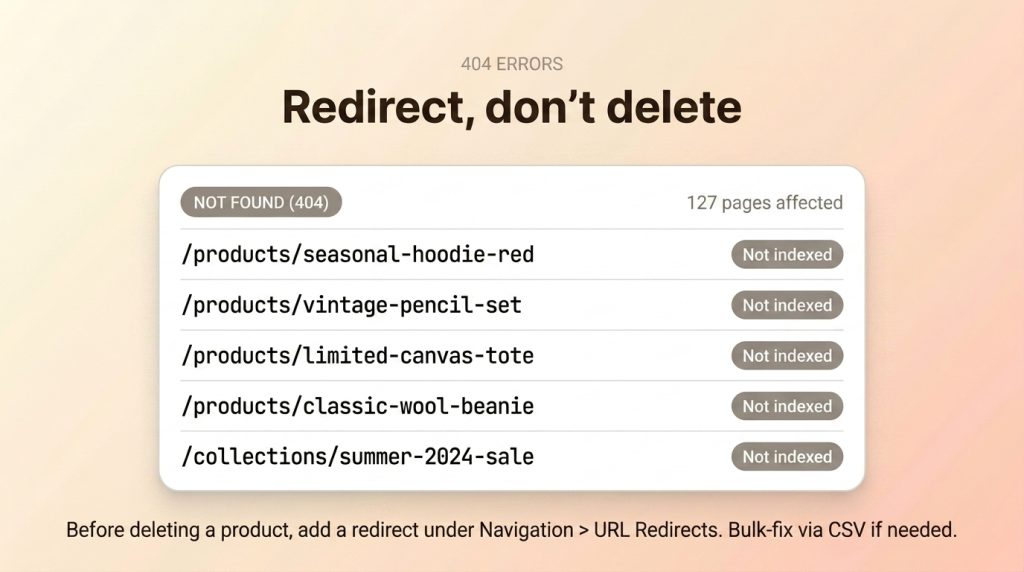
When you delete a product, its URL returns a 404. If that product had backlinks or rankings, all of that value disappears. This is especially common on stores that rotate seasonal inventory.
Fix: Before deleting, create a redirect under Online Store > Navigation > URL Redirects. Add the old URL as “Redirect from” and a related product or collection as “Redirect to.” For stores with hundreds of deleted products, export your 404 list from Search Console (Pages > Not found (404)) and batch-create redirects via CSV upload.
Redirect Chains
A redirect chain happens when URL A redirects to B, which redirects to C. Each hop adds latency and dilutes link equity. These accumulate when you change URL handles multiple times.
Fix: Update every redirect to point directly to the final destination. If A goes to B goes to C, change both A and B to point to C. Use a crawl tool to identify chains, then fix in bulk under Online Store > Navigation > URL Redirects.
Soft 404s from Empty Collections
An empty collection page returns a 200 status code but displays no content. Google classifies these as “soft 404s.” This happens when inventory changes or automated collection rules no longer match any products.
Fix: Add products to the collection, noindex it, or redirect to a parent collection. In your Liquid template, add conditional logic: if collection.products.size == 0, output a noindex tag.
Orphaned Pages with No Internal Links
Orphaned pages have no internal links pointing to them, which means Google may never crawl or index them. Common orphans include old blog posts, campaign landing pages, and products not assigned to any collection.
Fix: Run a crawl and compare discovered URLs against your sitemap. Any URL in the sitemap but not found by the crawler is orphaned. Add these pages to navigation, link from related content, or assign to a collection. For a broader audit, follow our Shopify store audit checklist.
How Do You Optimize Shopify for Mobile?
Mobile accounts for nearly 80% of global ecommerce website traffic. Google uses mobile-first indexing, which means the mobile version of your store is what gets evaluated for rankings. If your mobile experience has issues, your rankings suffer across all devices.
Shopify themes handle responsive layout, but that doesn’t guarantee a good mobile experience. Test on real phones, not just browser developer tools.
Test on Real Devices
Test on at least one iPhone and one Android phone. Navigate the full journey: homepage, collection, product page, add to cart, and checkout. Browser dev tools don’t replicate touch interactions or real network conditions.
Tap Target Sizing
Interactive elements need a minimum of 48px by 48px to be reliably tappable. Small tap targets hurt mobile usability. Lighthouse audits still flag tap-target issues — run a Lighthouse mobile report on your key pages and check the “Tap targets are sized appropriately” audit. Navigation links, filter buttons, and add-to-cart buttons are the common offenders.
Font Size and Readability
Body text should be at least 16px on mobile. Anything smaller forces pinch-zooming. Check that product descriptions, collection text, and blog posts render at a readable size.
Mobile Checkout Flow
Shopify’s default checkout is well-optimized, but custom scripts, upsell apps, and post-purchase offers can break the mobile experience. Test the full checkout flow on a phone before launch.
For a comprehensive SEO approach to your store, visit our Shopify SEO guide which covers on-page, content, and link building alongside these technical foundations.
Frequently Asked Questions
Does Shopify handle technical SEO automatically?
Shopify handles about 80% of technical SEO including SSL, CDN, sitemaps, canonical tags, and mobile responsiveness. You need to handle page speed optimization, structured data beyond basic Product schema, duplicate content fixes for collection URLs and tag pages, and robots.txt customization for specific crawl directives.
How do I check my Shopify store’s technical SEO?
Run a crawl with Screaming Frog or Sitebulb to find duplicate content, broken links, and redirect chains. Check Google Search Console’s Pages report for indexing errors. Test page speed with PageSpeed Insights. Validate structured data with the Rich Results Test. For a structured process, follow our Shopify SEO checklist.
Can I edit robots.txt on Shopify?
Yes, on Shopify 2.0 themes. Edit the robots.txt.liquid template in your theme code under Online Store > Themes > Edit code > Templates. You can add or modify rules for specific crawlers, block additional paths, and add directives for AI bots. The file uses standard Liquid syntax, so you can include conditional logic.
Why is my Shopify store slow?
The most common causes are too many installed apps loading JavaScript on every page, uncompressed images over 200KB, excessive custom fonts, and third-party scripts like chat widgets and analytics pixels loading synchronously. Start by removing unused apps and compressing images. Then audit your custom fonts and defer non-critical scripts.
How do I fix 404 errors on Shopify?
Go to Online Store > Navigation > URL Redirects. Add a redirect from the broken URL to a relevant product or collection page. Check Google Search Console’s Pages report regularly for new 404s, especially after deleting products or changing URL handles. For bulk fixes, export the 404 list and use a CSV upload or redirect management app.
Next Steps
Technical SEO on Shopify isn’t about overhauling the platform. It’s about fixing the specific issues Shopify doesn’t handle automatically: duplicate content from collection URLs, page speed dragged down by app bloat, missing structured data, crawl errors from deleted products, and robots.txt customization for cleaner crawling.
Start with a crawl audit to identify your store’s specific issues, then work through them in priority order. Speed fixes and duplicate-content cleanup usually deliver the fastest results; structured data takes longer to implement but lifts click-through rate from rich results.
The full Shopify SEO strategy is in our definitive guide. If you’d rather have the work done, our Shopify SEO services cover technical audits and implementation.